
Target fields are the details your action gathers from the customer, such as a name or an order number. You set them up in the Target fields section of the editor.
Add and name a field
Click Add field to append a new row.
In Key, type the field name, for example order_number. It is cleaned as you type into lowercase letters, digits and underscores.
Pick a Type: text, number, boolean, date, phone or email.
Write a Description so the AI knows what to ask for.
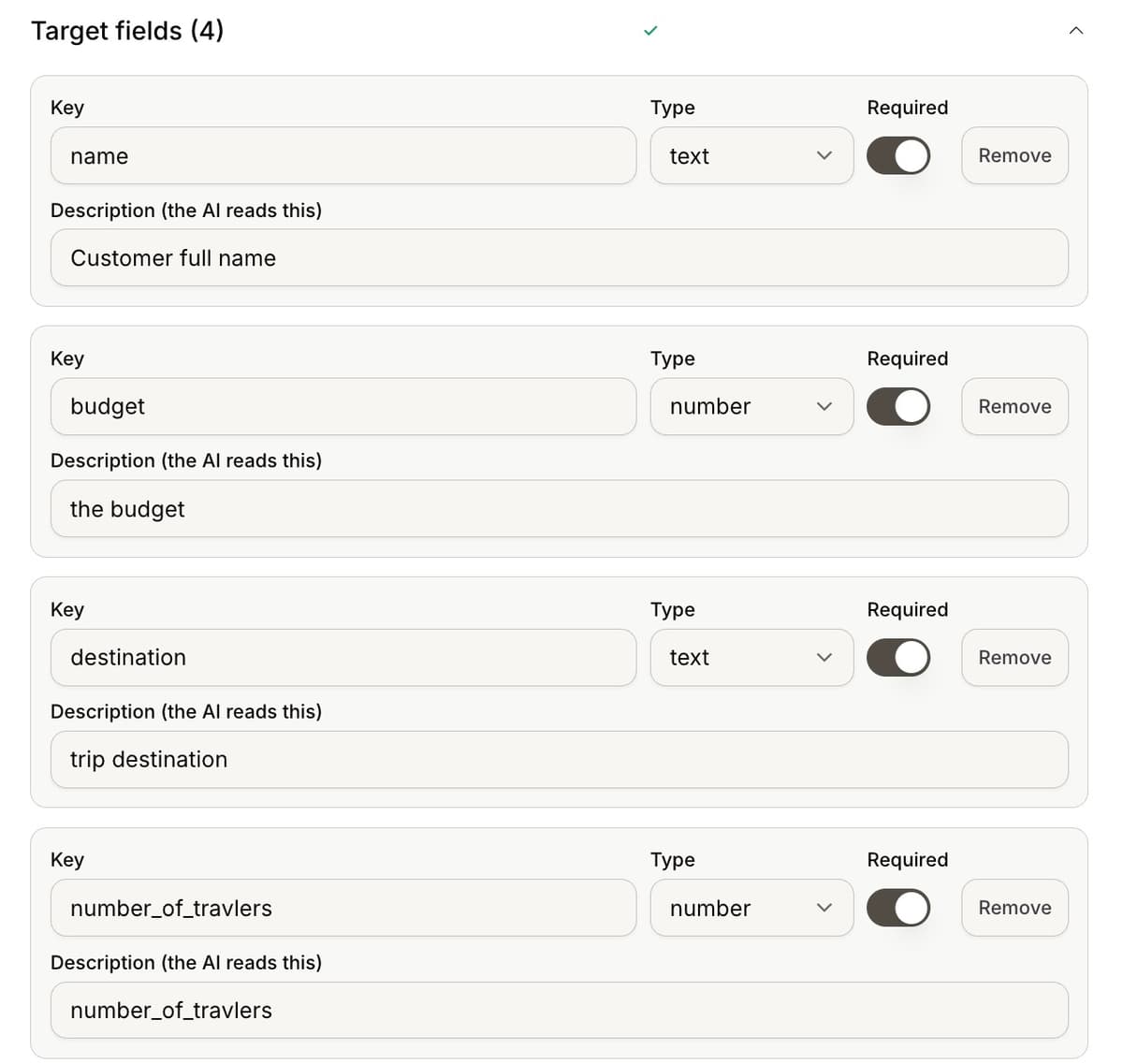
Required fields
Turn on Required for any field the action must have before it fires. If a required field is still missing, the action will not send or look up anything until the AI collects it.
New fields you add are required by default. The last field cannot be removed, so edit it in place instead.
The key is what you receive
The Key you type is exactly the property name in the data you receive. For a Submit action it is the JSON key in the payload; for a Lookup it becomes the query parameter. Keep keys clear and consistent so your system can read them.
You can add up to 20 fields. Two fields with the same key are not allowed, since one would overwrite the other.
Frequently asked questions
Why did my key change as I typed?
Keys are cleaned to lowercase letters, digits and underscores. "Order Number" becomes "order_number".
What does the description do?
The AI reads it to know what to ask the customer, so make it specific.
Can I reorder fields?
Not from the editor. Fields keep the order you add them.