
There are four places you can create a list. They all produce the same thing, so use whichever fits what you are doing.
From the Lists page
Best when you are setting up in advance.
Open CRM, then Lists.
Select Create a list.
Type a name and select Create.
While adding contacts to it
Best when you already know who belongs in the list. This creates the list and adds the people in one step.
On the Contacts page, tick the people you want.
Select Add to list.
Type the new name in the search box and choose the create option that appears.
From one contact
Open a contact, go to its Lists section, select Add to list and type a new name.
While importing a CSV
Every import has to go into a list, so the import panel lets you create one as you go. Choose New list and name it.
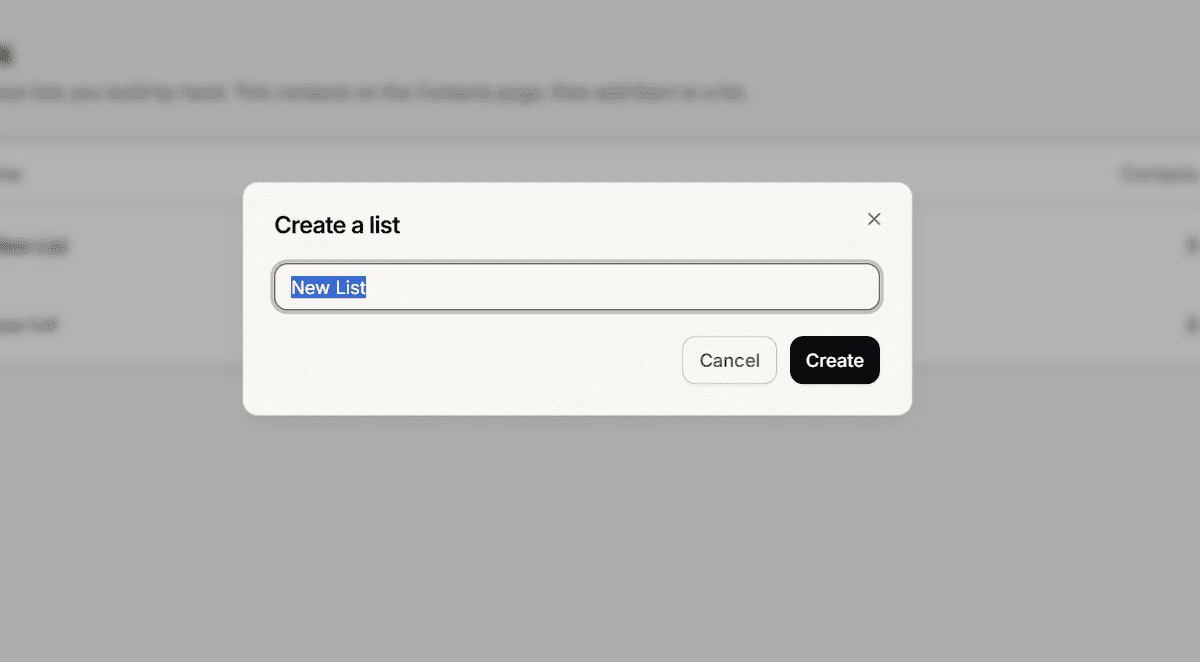
Naming
Names can be up to 64 characters and must be unique in your workspace. Colours are assigned automatically, so there is nothing to choose.
Capitalisation counts as part of the name, which means VIP and vip would be two separate lists. Pick one style and keep to it.
Renaming and deleting
On the Lists page, use the menu at the end of a list row to rename or delete it. You can also rename from the list page itself using the pencil beside its name.
Deleting removes the list from every contact in it. The contacts are not affected.
Frequently asked questions
What if the name already exists?
Creating with an existing name simply uses that list rather than failing. Renaming to a name that is taken is refused.
Can I choose the colour?
No, it is assigned for you.
Is there a limit on lists?
None that you are likely to reach in normal use.