
Creating a custom field takes about a minute. Choosing the right type up front matters, because a field cannot be changed after you create it.
Steps
Open your customer service agent and select Users.
Select Custom fields above the table.
Type a name for the field, for example Plan tier.
Choose a type: Text, Number, True / false, Date or Single-select.
If you chose Single-select, enter the options separated by commas, for example Free, Pro, Enterprise.
Decide whether to turn on Let the AI collect this in conversation.
Select Add field.
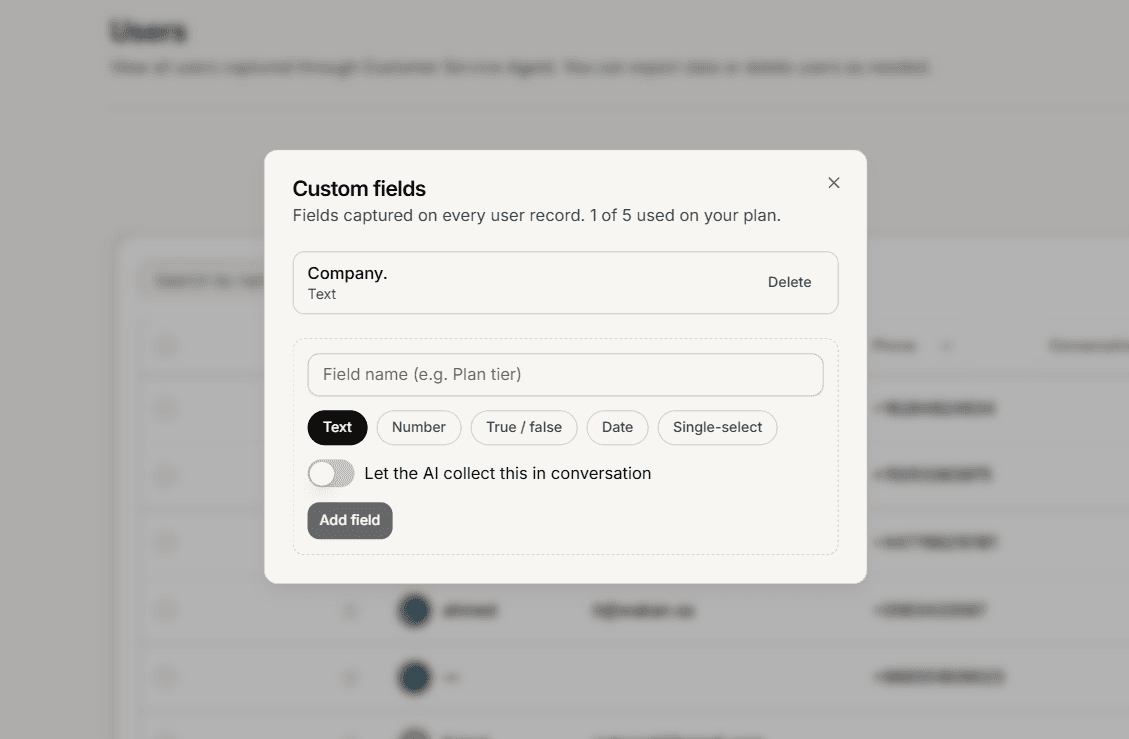
Choosing a type
Text takes anything. It is the safe default when values vary.
Number and Date keep values tidy and consistent.
True / false suits a yes or no fact and displays as Yes or No.
Single-select is the best choice when there is a fixed set of answers, because it stops your records filling with three spellings of the same thing. It needs at least one option.
Get it right first time
A custom field cannot be edited once created. There is no rename, no type change, and no way to alter the options on a select field. The only route is to delete it and add a new one.
Deleting is immediate and asks for no confirmation, so take a moment before selecting it. Values already recorded against a deleted field are not shown anywhere afterwards.
Given that, it is worth deciding on the exact name and type before you create the field rather than after.
Letting the AI collect it
Turning this on lets your agent ask for the value during a conversation when it does not already have it.
Use it for things a customer can reasonably answer, like an order reference or a preferred branch. Avoid it for anything internal, such as an account status your team assigns, because the AI will ask customers for it.
You can control which channels ask for which fields from your agent automations, where each custom field appears as its own row.
When you reach your limit
Once you have used every field your plan includes, the form is replaced by a message saying so. Delete one you no longer need, or move to a plan with more.
Frequently asked questions
Can I rename a field?
No. Delete it and create a new one.
Can two fields share a name?
Yes, but it makes records harder to read, so use distinct names.
Will deleting a field free up a slot?
Yes, immediately.