
The chat widget is a small script you paste into your website. Once it is there, your AI agent can talk to visitors on every page.
Get your script
Open your customer service agent and go to the Playground.
Select the last step, Test and Deploy.
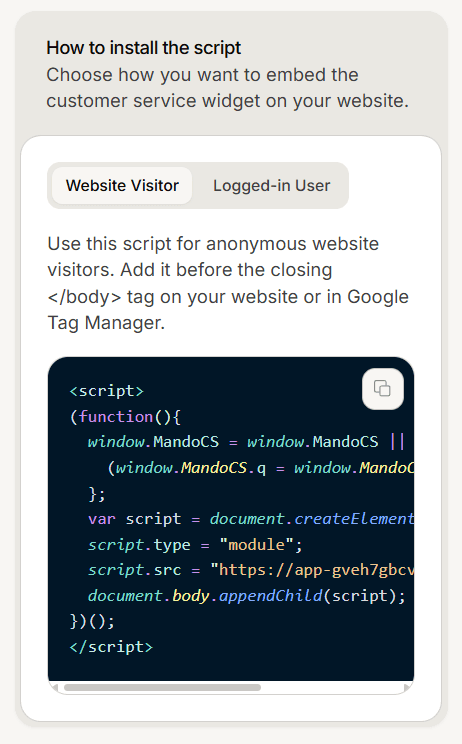
Find the card headed How to install the script.
Stay on the Website Visitor tab and use the copy button on the code block.
Copy it rather than retyping it. The script contains an address unique to your agent, and a single wrong character means it will never load.
Add it to your site
Paste the script just before the closing </body> tag on every page where you want the widget.
If you use a tag manager, you can add it there instead and let it handle placing it across your site. Most website builders also have a place for custom code in the site footer, which is the same thing.
Check it worked
Open your website in a normal browser window and look for the chat bubble. Send a test message to confirm your agent replies.
If nothing appears, the most common causes are a caching layer still serving your old pages, or the script sitting on one page rather than the template used by all of them.
If you have more than one language
When your agent has several languages enabled, the script the dashboard gives you includes a language setting. Copy the version for each language and use it on the matching part of your site.
Visitors cannot change the language from inside the widget, so the script you place decides what they get.
Frequently asked questions
Do I need a different script per page?
No. One script in your site template covers every page.
Can I install it through a tag manager?
Yes.
Is there a second script for signed in users?
There is a Logged-in User tab, which adds a step for telling Mando who the visitor is. Start with the visitor script and add that later.