
The email channel brings customer emails into your Mando inbox alongside every other conversation. Mando gives you a forwarding address, and you point your existing support inbox at it. Nothing about your email address changes for customers.
Steps
Open your agent, go to Settings, then Integrations and Channels.
On the Email card, select Connect Email.
Copy the Forwarding address Mando gives you.
In your own email provider, set up forwarding from your support inbox to that address.
Back in Mando, fill in the Original support address, for example support@yourdomain.com. This is used as the Reply-To so customer replies come back to you.
Set the Sender name, which appears as the From name on outbound emails.
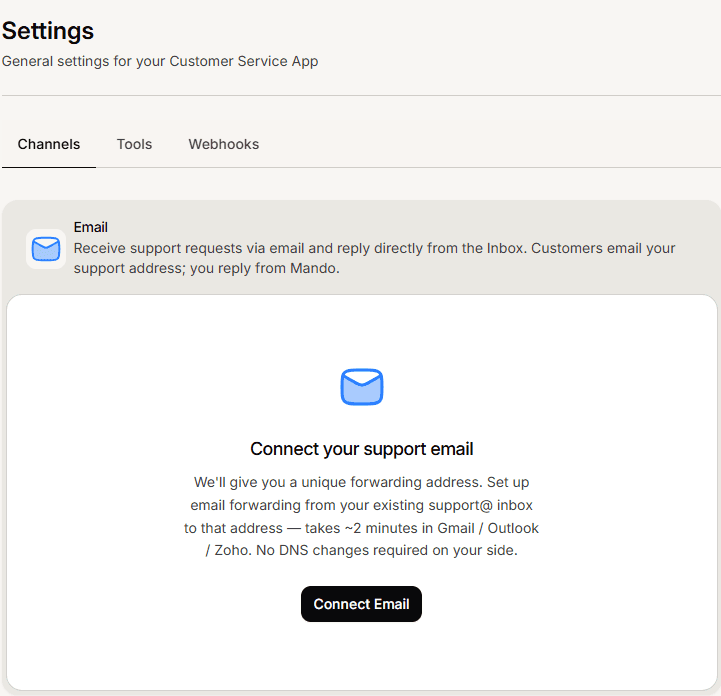
What you should see
The card shows a status of Active. Send an email to your support address from somewhere else: it should appear in your inbox under the email channel.
If nothing arrives, the forwarding rule in your email provider is the first thing to check, since that part happens outside Mando.
Frequently asked questions
Do customers see the Mando forwarding address?
No. Replies use your sender name and your original support address for replies, so the exchange looks like it always did.
Does my AI agent reply automatically?
Not at first. Email starts with AI replies switched off, so everything goes to your team until you change it.
Do I need to change my DNS?
No. This is email forwarding from your existing inbox, not a domain change.