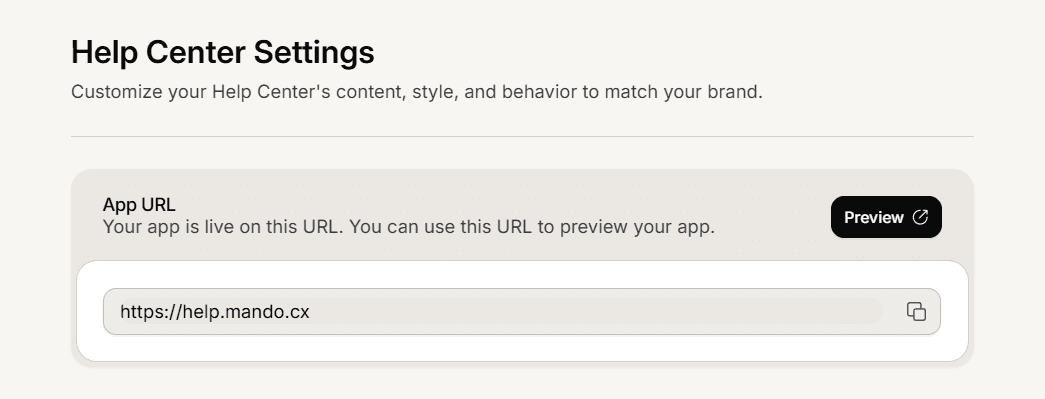
The dashboard gives you a direct link to your public site so you can check it the way a reader sees it, without hunting for the address.
Two ways to open it
The Preview button in the header of the help center Overview page.
The App URL card at the top of the Settings pages. It shows the address in a copy field and has its own Preview button, so you can paste the link to a colleague.
Both open the same address in a new tab.
What the preview actually shows
It is your real public site, not a private staging copy. Anything you can see there, a visitor can see too.
Only published articles appear. A draft address returns a not found page, so a draft cannot be previewed on the public site.
The link carries a freshness marker so you see your latest published changes straight away instead of a cached copy.
Once a custom domain is connected, the preview points at that domain, because that is where your site now serves.
If the preview does not look right
You land on the Mando website. The help center is switched off. Turn it on in General settings and save.
An article is missing. It is still a draft. Publish it, then reload the preview.
Your changes are not there. Reopen the link from the dashboard rather than reloading the old tab, so the freshness marker is applied again.