
Typing @ in a note lets you mention a colleague. It is how you ask a specific person for help rather than hoping someone notices.
How to mention someone
Open the conversation and switch the composer to note.
Type @ and start typing a name.
Pick your colleague from the list.
Write the rest of the note and send.
Mentions live in notes, so the customer never sees them.
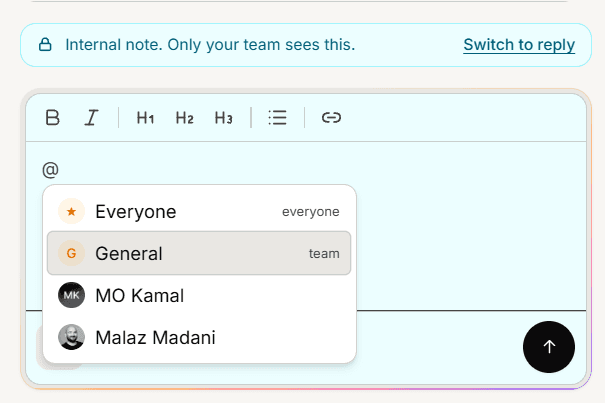
A mention grants access
This is the part worth understanding. Mentioning someone does not only tell them, it lets them in.
Members normally only see conversations on their teams or assigned to them. A mention overrides that for the conversation you mentioned them on, so you can pull in a specialist from another team without an admin changing anything.
Where your colleague sees it
In their Mentions view in the inbox navigation, which collects every conversation where they were mentioned and tracks which ones they have already looked at.
Mentions do not send an email or a push notification. They are in-product only. So if something is genuinely urgent, mention them and tell them another way, rather than assuming a mention will reach someone who is not in the inbox.
Switching back to reply clears mentions
If you type a note with mentions and then switch the composer back to reply mode, the mention text is stripped out of your draft.
That is deliberate, so an internal name never leaks into a customer reply. But it means a note you started and then changed your mind about loses those mentions, and you will need to re-add them if you switch back.
Mention the person, not the room
Because there is no email or push, mentioning five people rarely gets a faster answer than mentioning the one person who can help. Pick deliberately.
Frequently asked questions
Can I mention someone in a customer reply?
No. Mentions belong to notes.
Will they get an email?
No. Mentions appear in their Mentions view in the inbox.
Can I mention someone outside my team?
Yes, and doing so gives them access to that conversation.