
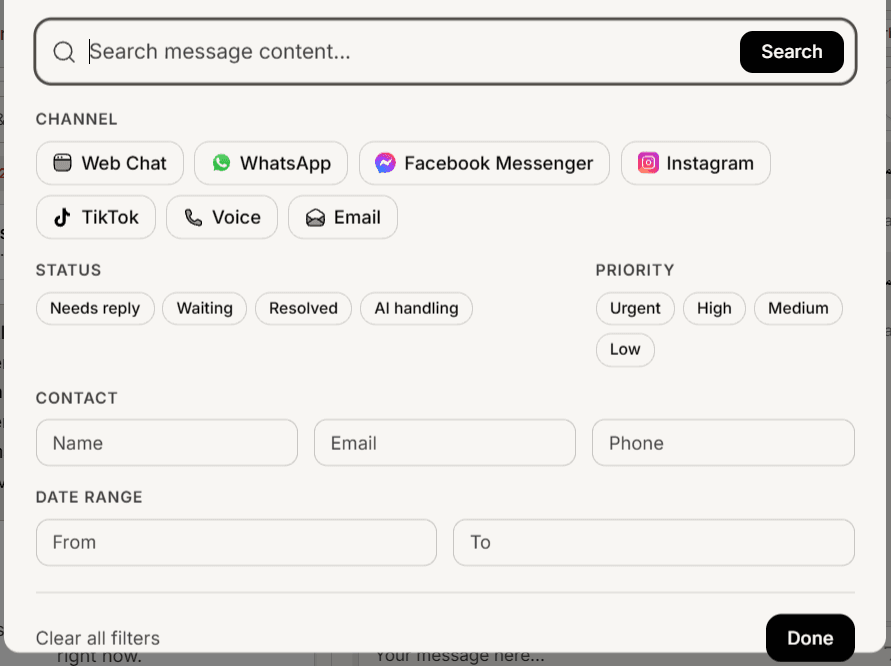
Search sits above your conversation list, in the search and filter drawer. It gives you two different ways to find something, and picking the right one saves time.
Search by what was said
Use the message content field when you remember a phrase from the conversation but not who sent it. It looks inside the messages themselves, so an order number, a product name or a distinctive complaint will find it.
Search by who it was
Separate fields let you search by customer name, email or phone. These match partially, so part of a name or the last digits of a number is enough.
This is the one to use when a customer contacts you again and you want their history before replying.
Narrow with filters
The drawer also filters by channel, priority, date and status. Combine them with a search to cut a long list down quickly.
One thing to watch: the status filter here overrides the tab you have selected, until you click a tab again. If your results look wrong, check whether a status filter is still set from earlier.
Search is scoped to what you can see
Results follow the same rules as the rest of your inbox. If you are a Member, you search across the conversations on your teams and assigned to you, not the whole workspace.
So a colleague finding something you cannot is usually about access rather than the search term.
Be specific on a busy inbox
A very broad search on a workspace with a lot of history can hit an internal ceiling and return only part of what matches, without saying so.
The practical advice is to search for something distinctive rather than a common word, and add a date or channel filter when you know roughly when it happened. A precise search is faster and gives you a complete answer.
Frequently asked questions
Does search look inside internal notes?
It searches conversation messages. Search for the customer instead if you are trying to find a case by its context.
Why can I not find an old conversation?
Check the status filter and the tab. A resolved conversation will not appear while you are looking at Needs reply.
Can I search across all my agents at once?
Each customer service agent has its own inbox and its own search.