
Inviting someone sets three things at once: their role, which apps and features they can reach, and which teams they belong to. All three can be changed later, but getting them right at invite time saves the new person a confusing first day.
Before you start
Only a Super Admin can invite people.
Your plan limits how many team members you can have. See How many apps each Mando AI plan includes.
Steps
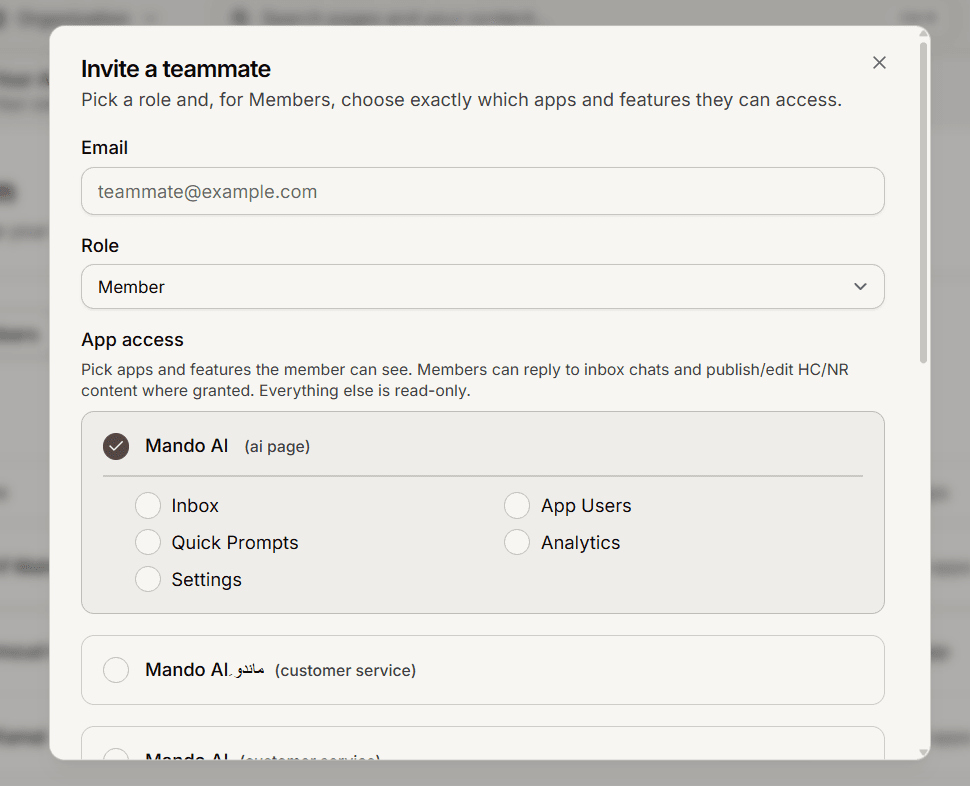
Open Team and select Invite member.
Enter their Email.
Pick a Role. Choose Member unless this person genuinely needs to control billing and other people's access.
For a Member, set App access: tick the apps and the features within them that this person should see.
Optionally pick the Teams they should belong to. You can change this later.
Select Send invite.
What the new member can do
Worth knowing before you pick their access: a Member can reply to inbox chats, and publish or edit help center and newsroom content, wherever you have granted it. Everything else they can reach is read-only. So granting access to Settings lets them look at it, not change it.
Troubleshooting
Invite failed
Check the address is right and that you have not reached your plan's team member limit. Upgrading, or removing someone who has left, frees a seat.
No apps appear in the invite dialog
The organization has no apps yet. Create one first, then invite people to it.
Frequently asked questions
Can I change their access later?
Yes. Open the member from the Team page and edit their capabilities or teams at any time.
Does an invited member see the setup wizard?
No. The welcome wizard runs for Super Admins setting up a new workspace. Invited people go straight to the dashboard.
Do team members count toward my plan?
Yes, each plan includes a set number of team members.