
Creating a team takes one field: a name. Everything else is optional, and each setting changes either who sees the conversations or how the AI decides to send them there.
Steps
Open Team and go to Teams.
Select Create team.
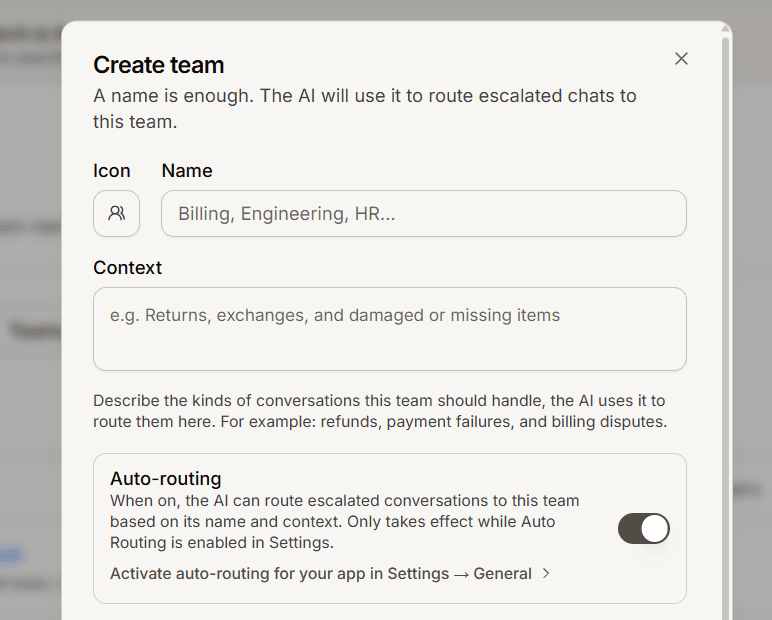
Enter a Name. Use the words your business already uses, such as Billing, Engineering or HR. The AI matches on this name, so a vague one routes badly.
Optionally add a Context describing the conversations this team should handle, for example returns, exchanges, and damaged or missing items. This is what the AI reads when it decides where an escalation goes.
Pick the Members who belong to the team.
Optionally set App scope to limit the team to specific Customer Service apps. Leave it empty and the team is available to every app.
Optionally set Respond within in minutes as this team's first-reply target. Leave it blank to use the app default.
Leave Auto-routing on if you want the AI to send matching conversations here.
Save.
One more switch to check
A team's own auto-routing only takes effect while auto-routing is also enabled for the app, in Settings then General. Turning it on for the team is not enough on its own, and this is the most common reason a correctly built team never receives anything.
What you should see
The team appears on the Teams page with its member count and scope. Its members now see conversations assigned to it in their inbox.
Frequently asked questions
How specific should the name and context be?
Specific. The AI routes on meaning, so Returns and refunds beats Team 2.
Can one person be in several teams?
Yes, and they will see the conversations of every team they belong to.
What does App scope do if I only have one agent?
Nothing useful. Leave it empty until you run more than one Customer Service app.