
Add-ons are bought from the Billing page and take effect on your workspace straight away.
You need to be a Super Admin on a paid plan.
Steps
Open Billing from your organisation settings.
Scroll to the Add-ons section below the plan cards.
Find the add-on you want and select Add.
If it is a top-up you can buy more than one, choose how many.
Confirm with Add to Subscription.
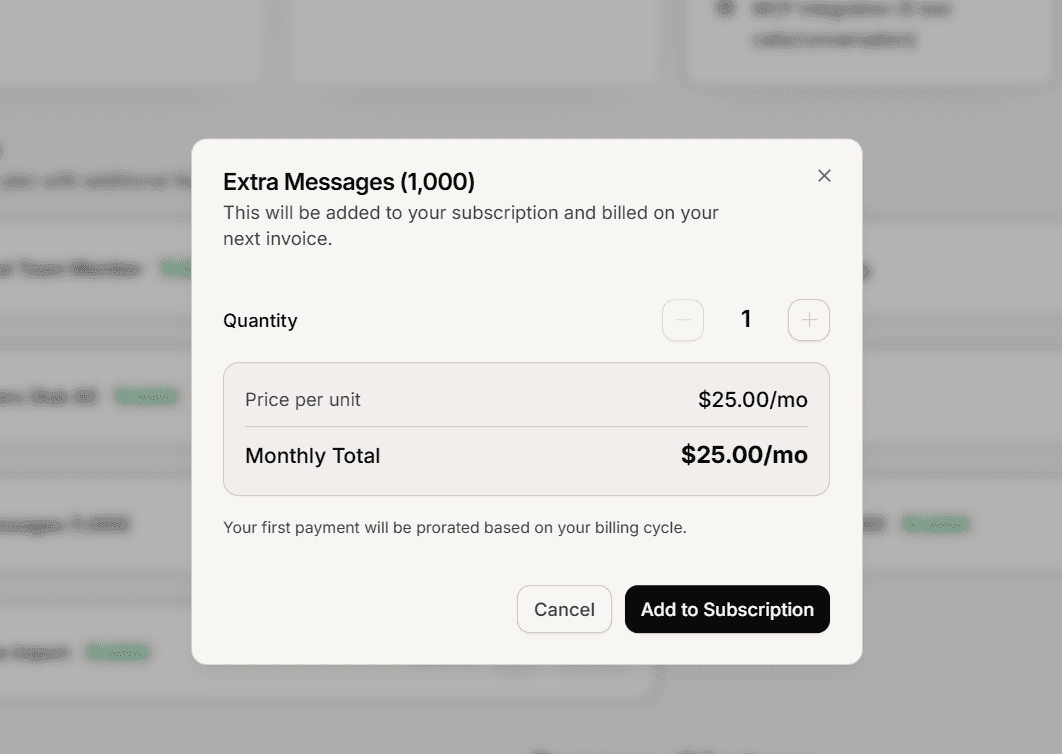
Buying more of one you already have
For seats, messages and pages you can increase the quantity later. Use Add More on that add-on rather than buying it again as if it were new.
Check it applied
Open the Usage page. Your limit should now include the add-on, so an extra pages add-on shows a page allowance a thousand higher than your plan alone.
If the number has not moved, reload the dashboard so it picks up the change.
Removing an add-on
Use Remove on the add-on card. Your limits go back to what your plan alone provides.
Before removing a capacity add-on, check you are actually under the lower limit. Dropping below what you are using does not delete anything, but you may not be able to add more until you are back within it.
If you are billed through a store
Merchants billed through Salla, Shopify or Zid manage their subscription on that platform rather than in Mando, so the Billing page points you there instead of showing purchase controls.
Frequently asked questions
When am I charged?
Add-ons bill on the same cycle as your plan.
Can a Member buy one?
No. Billing is limited to Super Admins.
The add-on I want is not shown.
Add-ons are available on every paid plan. Scale already includes Remove Branding and Custom Domain, so you do not need to buy them there.