
You can set which agents may use a content item from three places, depending on whether you are changing one item or many.
For a single item
Open the content item.
Find Share With in the sidebar on the right.
Choose the agents that should be able to use it.
Save the item. The sidebar is part of the page form, so your change is not stored until you save.
That last step catches people out. Changing the selector and navigating away loses the change.
For several items at once
In your content list, tick the checkbox on each row you want.
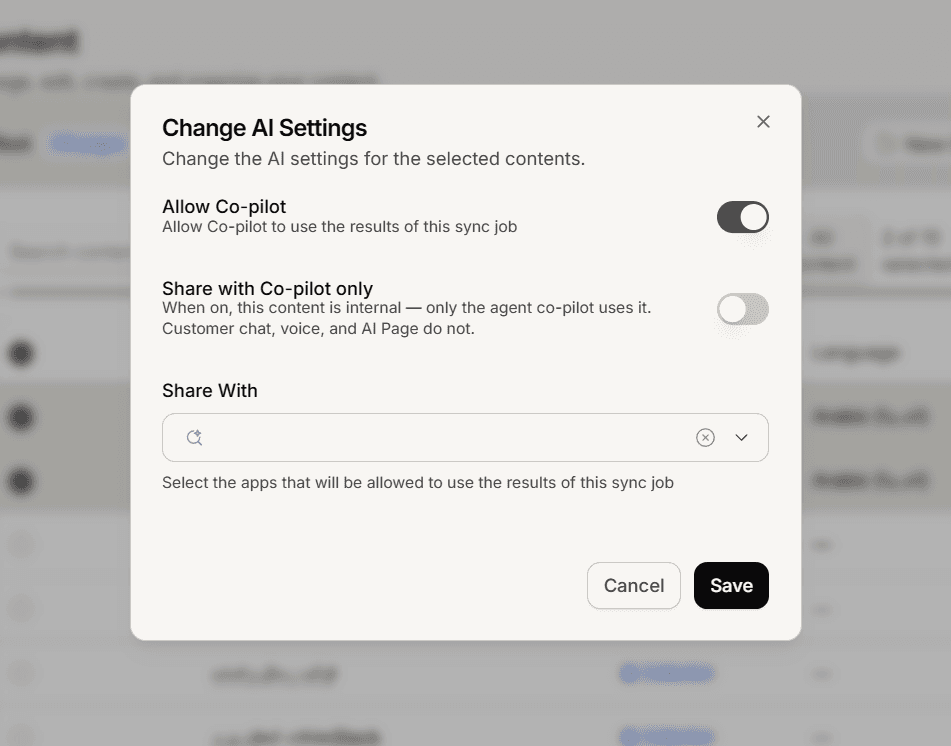
Select Change AI Settings in the toolbar.
Set the sharing you want and confirm.
For everything matching a filter
When you select every row on the page, Mando offers to select all items matching your current filters, not just the visible page. Change AI Settings then applies to all of them.
In this mode each target gets three choices rather than a checkbox: No change, Share, or Unshare. That lets you add one agent across hundreds of items without disturbing the rest of their sharing. Mando asks you to confirm before it runs.
Very large selections are refused with a message asking you to narrow your filters.
Changes reach nested content
This is the behaviour most worth knowing. When you change sharing on a collection, the change applies to everything inside it, at every level of nesting.
That is usually what you want, and it is the efficient way to share a whole folder of articles with a new agent. It also means a careless change on a top level collection can quietly re-share hundreds of items, so check what you have selected before confirming.
Store products are different
Products synced from your store have their sharing managed by the store connection. Changing them by hand does not stick, because the next sync sets it again from the store settings.
To change which agents see your products, change it on the store connection rather than on individual products.
Frequently asked questions
How do I find content that is shared with nobody?
Open the filters and use the shared with section, which includes an unshared option.
My sidebar change did not save.
Save the content item itself. The sidebar does not save on its own.
Can I undo a bulk change?
Not with one action. Reselect the items and set sharing back.